

Ever felt like your iPhone home screen is a chaotic mess, resembling a teenager’s bedroom? Fear not! Organizing your apps into folders is easier than finding your favorite pair of socks. With just a few taps, you can transform that clutter into a sleek, efficient layout that even Marie Kondo would approve of.
Understanding Folders on iPhone Home Screen
Folders on the iPhone home screen provide a practical solution for organizing apps. Users can group related apps together, which helps minimize clutter. A folder can contain up to 12 apps on the home screen, making it easy to access frequently used applications.
Categorization of apps enhances efficiency. For instance, grouping all social media apps into one folder simplifies navigation. Similarly, users might choose to create folders for productivity, games, or entertainment, streamlining their home screen experience.
Creating a folder is straightforward. Users can drag one app onto another to automatically form a folder. This method reduces the time spent searching for apps. Alternatively, users can rename the folder to better reflect its contents, making it even more user-friendly.
Customization options exist for folders. Users can rearrange apps within a folder by tapping and holding an app icon until it jiggles. This flexibility allows individuals to prioritize the most important apps in easily accessible positions.
Folders also adjust dynamically when new apps are downloaded. If a new app fits an existing category, users can easily move it into the folder. This feature maintains organization even as app collections grow.
Overall, the functionality of folders on the iPhone home screen promotes a more organized layout. Users benefit from improved access to their essential tools, enhancing the overall efficiency of the device.
Steps to Add a Folder to iPhone Home Screen
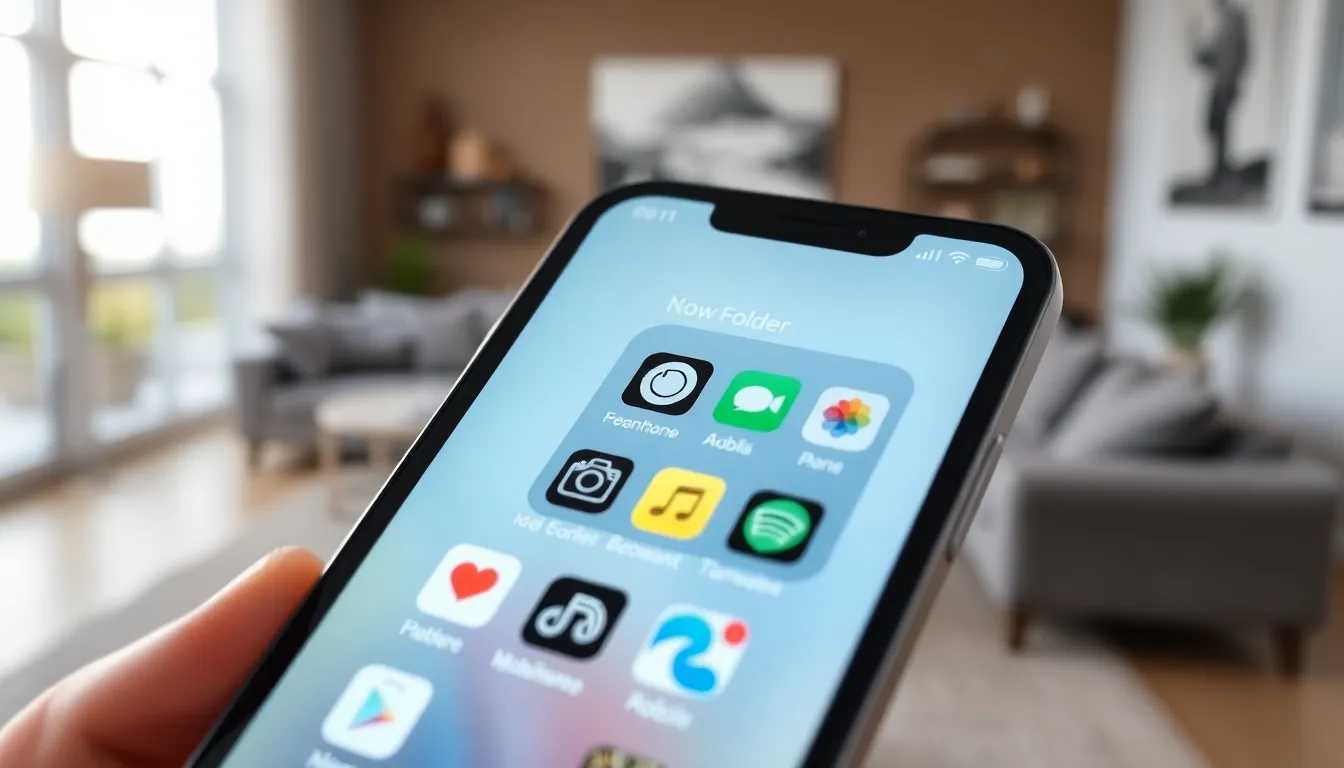
Adding a folder on the iPhone home screen enhances organization and improves overall access to apps. Follow these steps to create folders and add apps seamlessly.
Creating a New Folder
To create a new folder, press and hold an app icon until all icons start to jiggle. Drag one app over another; this action triggers the formation of a folder. A prompt appears, allowing the user to rename the folder. For better organization, choose a descriptive name that reflects its contents. Press the “Done” button or tap outside to finalize your changes. With just a few touches, the new folder is ready for use.
Adding Apps to the Folder
To add more apps to the folder, again enter the jiggle mode by holding an app. This time, drag the desired app into the existing folder. The folder opens automatically, allowing for easy placement. Once the app is inside, the user can adjust the arrangement by dragging apps within the folder. Repeat this process for any apps needing organization. Press “Done” or tap outside when finished to exit jiggle mode and save app placements.
Customizing Your Folder
Customizing folders on the iPhone enhances organization and visual appeal. Users can rename folders and change their colors for easier identification.
Renaming the Folder
Renaming a folder adds clarity to its purpose. To rename, users tap the folder to open it, then tap the name at the top. A text field appears, allowing for easy entry of a new name. Choose descriptive titles, like “Games” or “Productivity,” to quickly identify contents. Save the changes by tapping done. This quick process ensures folders reflect their actual app categories, streamlining home screen navigation.
Changing the Folder Color
Changing the folder color improves aesthetic appeal and organization. Hold down on the folder until options appear, then select the option to change the color. A palette displays various colors. Pick from the selections based on personal preference or category association, such as blue for productivity or green for finance. Apply the new color by confirming the selection, allowing the folder to visually stand out on the home screen. This small adjustment can enhance usability and personalization.
Tips for Organizing Your Home Screen
Start by grouping similar apps together to minimize clutter. Social media apps can reside in one folder, while productivity tools can occupy another. Aim for logical categories to enhance easy access.
Consider renaming folders for clarity. A descriptive name makes it simple to identify the contents at a glance. To rename a folder, open it and enter a new name, ensuring it reflects the apps housed inside.
Utilize color-coding to add visual appeal. Selecting distinct colors for each folder can streamline navigation. This custom touch makes it easier to locate apps based on their function or category.
Rearranging apps within folders improves organization. Keep frequently used apps at the top for quick access. Drag and drop them to create a layout that matches personal preferences.
Maintain regular updates to folders as apps are added or removed. This practice ensures that the home screen remains organized over time. Deleting unused apps keeps everything relevant and tidy.
Explore the possibility of using widgets to complement folder organization. Widgets can provide quick access to information without needing to open specific apps. They offer an interactive way to customize the home screen further.
Experiment with different layouts until it feels right. No single method fits all, so try various combinations of folders and widgets. A personalized home screen reflects individual usage patterns and enhances overall efficiency.
Organizing apps into folders can transform an iPhone home screen from chaotic to streamlined. This simple method not only reduces clutter but also enhances navigation and accessibility. By grouping similar apps together users can create a more efficient layout tailored to their needs.
With easy steps to create and customize folders users can enjoy a more personalized experience. Regularly updating and rearranging apps ensures that the home screen remains functional and visually appealing. Embracing these organization techniques will lead to a more enjoyable and productive use of the iPhone.


