

Ever felt like your video could use a little more pizzazz? Maybe it’s dragging on like a tortoise in a marathon. Whether you want to speed things up for a thrilling montage or slow it down for dramatic effect, editing video speed on an iPhone is easier than finding a cat video online.
Understanding Video Speed Editing
Editing video speed on an iPhone enhances the viewing experience significantly. Users can create engaging content by adjusting the tempo of their footage.
Importance of Video Speed Adjustment
Video speed adjustment serves various purposes. Speeding up videos adds energy and excitement, making them perfect for highlights or tutorials. Slowing down footage captures key moments, enhancing emotional impact during storytelling. Enhanced pacing can sustain viewer attention, providing a better overall experience. This adjustment allows creators to convey their messages effectively, often influencing audience engagement positively. Professionals in marketing and filmmaking prioritize speed adjustments for better storytelling and visual appeal.
Different Speed Options Available
iPhone offers several speed settings for video editing. Users can select speeds ranging from 0.5 times for slow motion to 2 times for fast motion. The standard speed remains at 1 time, maintaining original playback. Additionally, advanced editing apps provide options for even finer control, like 0.25 times or 4 times. Choosing the appropriate speed creates various effects, enhancing creativity. Users should explore these options to find the most suitable match for their video’s intention and message.
How to Edit Video Speed on iPhone Using iMovie
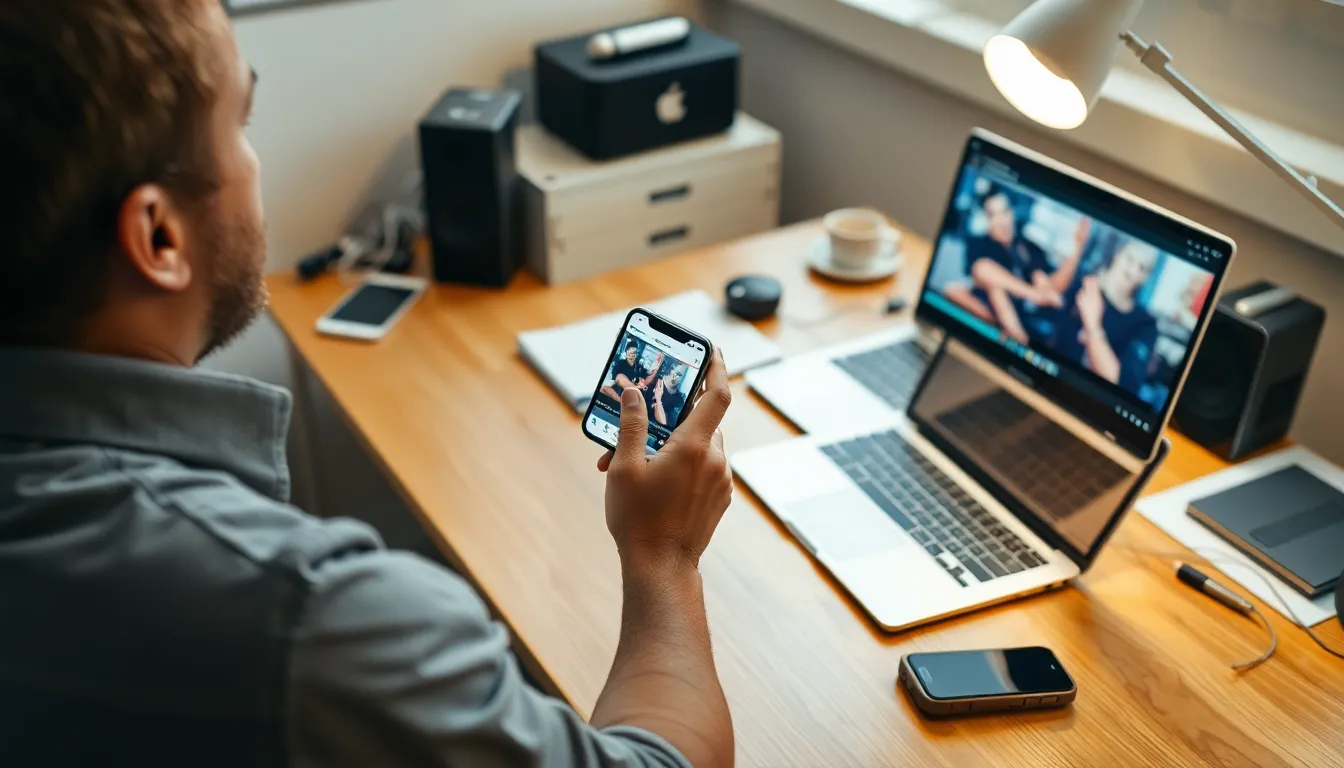
Editing video speed on an iPhone using iMovie is straightforward. This application provides users with all necessary tools to enhance their videos effectively.
Setting Up iMovie
To start, download iMovie from the App Store if not already installed. After installation, open iMovie and create a new project by selecting “Create Project.” Users can choose “Movie” to begin editing. Import the video by tapping the “+” icon and selecting video files from the library. Once imported, the video appears in the timeline, ready for speed adjustment.
Adjusting Speed for Clips
To adjust the speed of a clip, select it in the timeline. Tap on the speed icon located at the bottom of the screen. Users can drag the slider to increase or decrease the speed, ranging from 0.5 times for slow motion up to 2 times for fast motion. Changes reflect instantly, allowing for real-time review. Tapping “Play” provides a preview of the adjusted speed, ensuring the desired effect before finalizing the edits.
Editing Speed in Photos App
Editing speed in the Photos app offers a straightforward way to enhance videos on an iPhone. Users can quickly adjust the pace of their clips, creating a dynamic viewing experience.
Accessing the Video in Photos
First, open the Photos app and locate the video you want to edit. Tap on the video to view it in full screen. From there, users can find the “Edit” option at the top right of the screen. After selecting “Edit,” the interface displays controls for making adjustments to the video.
Using the Edit Feature
The edit feature provides an intuitive interface for altering video speed. Once in edit mode, users should tap the speed adjustment icon. Options then appear, allowing for a range from slow motion at 0.5 times speed to fast motion at 2 times speed. Each selection updates the video in real-time, enabling quick previews. A final tap on “Done” saves the changes made.
Third-Party Apps for Video Speed Editing
Numerous third-party apps enhance video speed editing on an iPhone, providing users with a variety of options to fine-tune their projects. These apps often come with advanced features that surpass those in the built-in tools.
Popular Apps for Speed Adjustment
Several popular apps stand out for video speed adjustment. Adobe Premiere Rush offers intuitive controls for speed changes, allowing users to easily create both fast-paced and slow-motion effects. Slow Fast Slow specializes in altering the speed of clips, providing users with granular control over specific sections of videos. KineMaster combines a multi-layer timeline with speed adjustment tools, catering to both beginners and advanced editors. LumaFusion is another robust choice for professionals, featuring comprehensive editing capabilities including speed manipulation. These options cater to diverse user needs, ensuring a suitable app for every project.
Features to Look for in These Apps
When selecting a video speed editing app, certain features should command attention. Look for intuitive interfaces that simplify adjustments, enabling quick learning for newcomers. Real-time playback functionality is crucial, ensuring users experience speed modifications instantly. Additionally, consider apps that offer granular speed control, allowing for adjustments exceeding standard options. Export quality matters, too; the ability to preserve high resolution after editing enhances final output. Built-in music and editing tools can further enrich the user experience, making the editing process more seamless.
Tips for Effective Speed Editing
Effective speed editing enhances video impact and viewer engagement. Users should focus on precise adjustments to align speed changes with the video’s narrative.
Best Practices for Editing Video Speed
Select the right speed setting for the intended message. Fluctuating between slow motion and fast motion captures viewer attention effectively. Utilize built-in apps like iMovie or Photos for quick edits. Review adjustments regularly to ensure quality. Maintain audio clarity when altering video speed. Explore third-party apps for added features, but prioritize usability and quality.
Common Mistakes to Avoid
Neglecting the overall narrative often diminishes video effectiveness. Avoid excessive speed changes that confuse the audience. Failing to preview adjustments can lead to missed imperfections. Ignoring audio synchronization disrupts the flow and viewer experience. Rushing the editing process usually compromises quality. Skipping the final review phase often results in overlooked errors.
Editing video speed on an iPhone opens up a world of creative possibilities. Whether aiming for a dramatic slow motion or an energetic fast-paced montage users can easily enhance their videos. The built-in tools in iMovie and the Photos app offer straightforward ways to make these adjustments while third-party apps provide advanced features for those seeking more control.
By experimenting with different speed settings and maintaining a clear narrative users can elevate their video content and engage their audience effectively. With just a few taps users can transform ordinary footage into captivating stories that resonate. Embracing these editing techniques can lead to a more dynamic viewing experience and ultimately better content creation.


